Emergency Access
This feature is currently in early access and will be fully available in version 1.5.0.
Visit cryptomator.org for more information about Enterprise features.
Emergency Access restores access to a vault inside Cryptomator Hub in case of account loss or ownership issues. Its process requires a group of trusted users (the "council") to approve the recovery. When enough approvals are collected, the emergency change is completed and vault management access is restored. Technically, this is implemented using key splitting based on Shamir's Secret Sharing.
Set Up Emergency Access
The feature can be activated for new and existing vaults:
- New vaults: During vault creation, use the
Define Emergency Access Conditionsstep. For the full workflow, see Vault Management. - Existing vaults: Open
Vault Detailsand configure Emergency Access.
Starting a Recovery Process
To start, open the Emergency Access page, select the vault, and start the desired process.
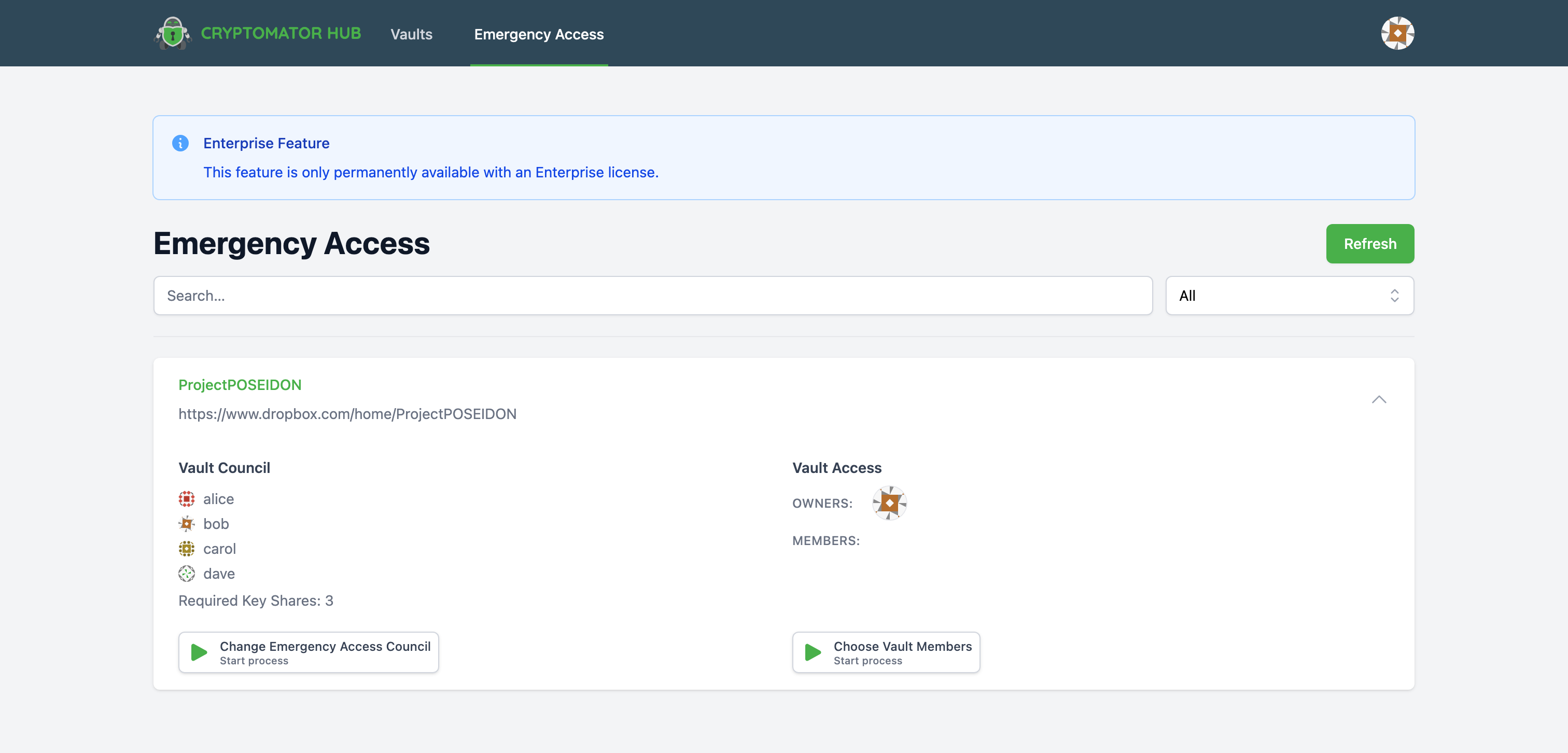
There are two process types:
Change Emergency Access Council: Change Emergency Access council and thresholdChoose Vault Members: Choose vault owners/members
Only one running process per type is allowed for the same vault.
Use this quick guide to choose the right process:
| If you want to... | Start this process |
|---|---|
| Give vault access to different users (owners/members) | Choose Vault Members |
| Remove access from specific users | Choose Vault Members |
| Replace council members who approve emergency operations | Change Emergency Access Council |
| Change how many council approvals are required (threshold) | Configurable in the admin settings |
Starting a process automatically approves the process.
Choose Vault Members
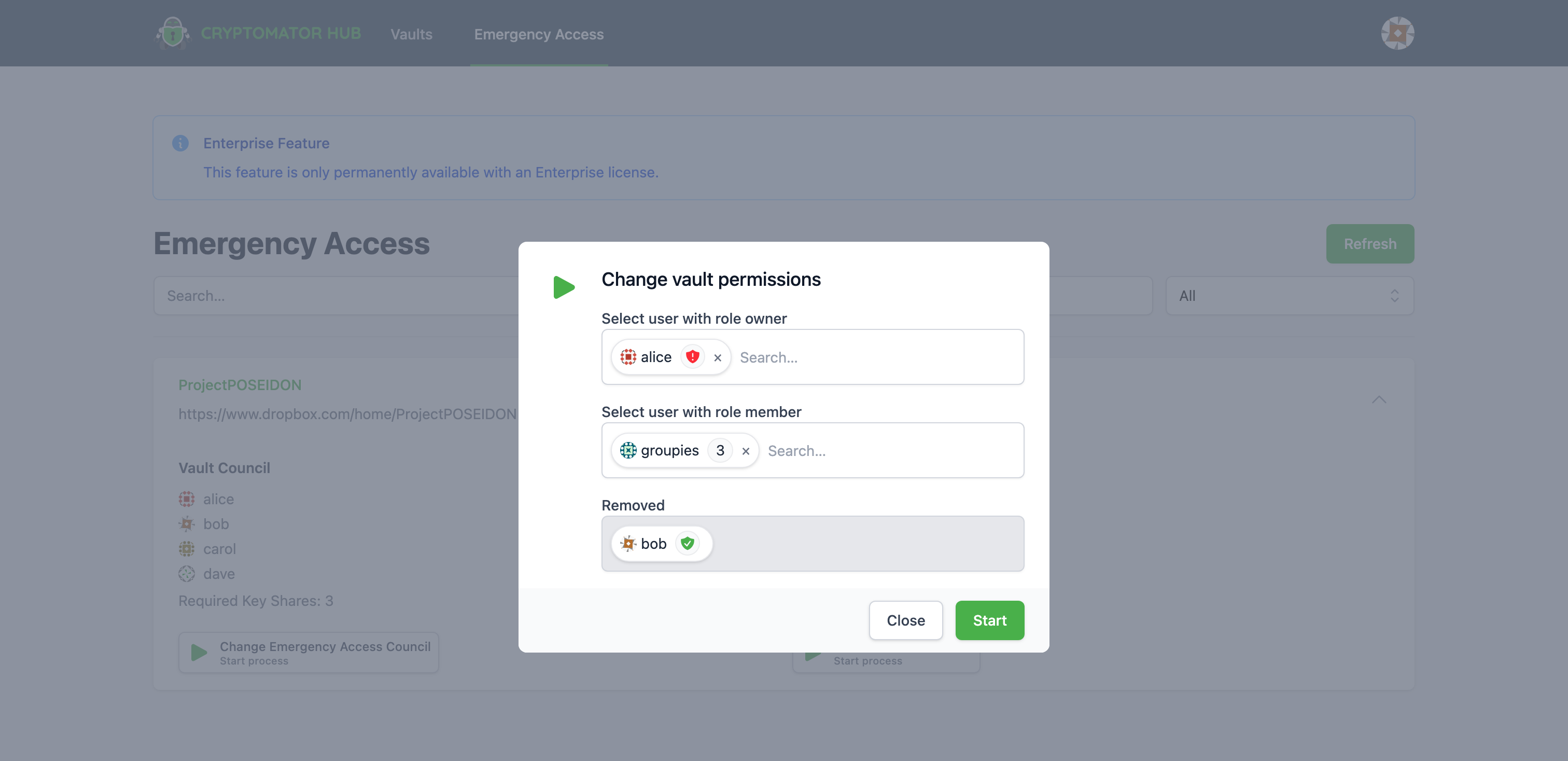
The Choose Vault Members process allows you to select new vault Owners or Members.
Users that are no longer part of the vault are shown as Removed.
Change Emergency Access Council
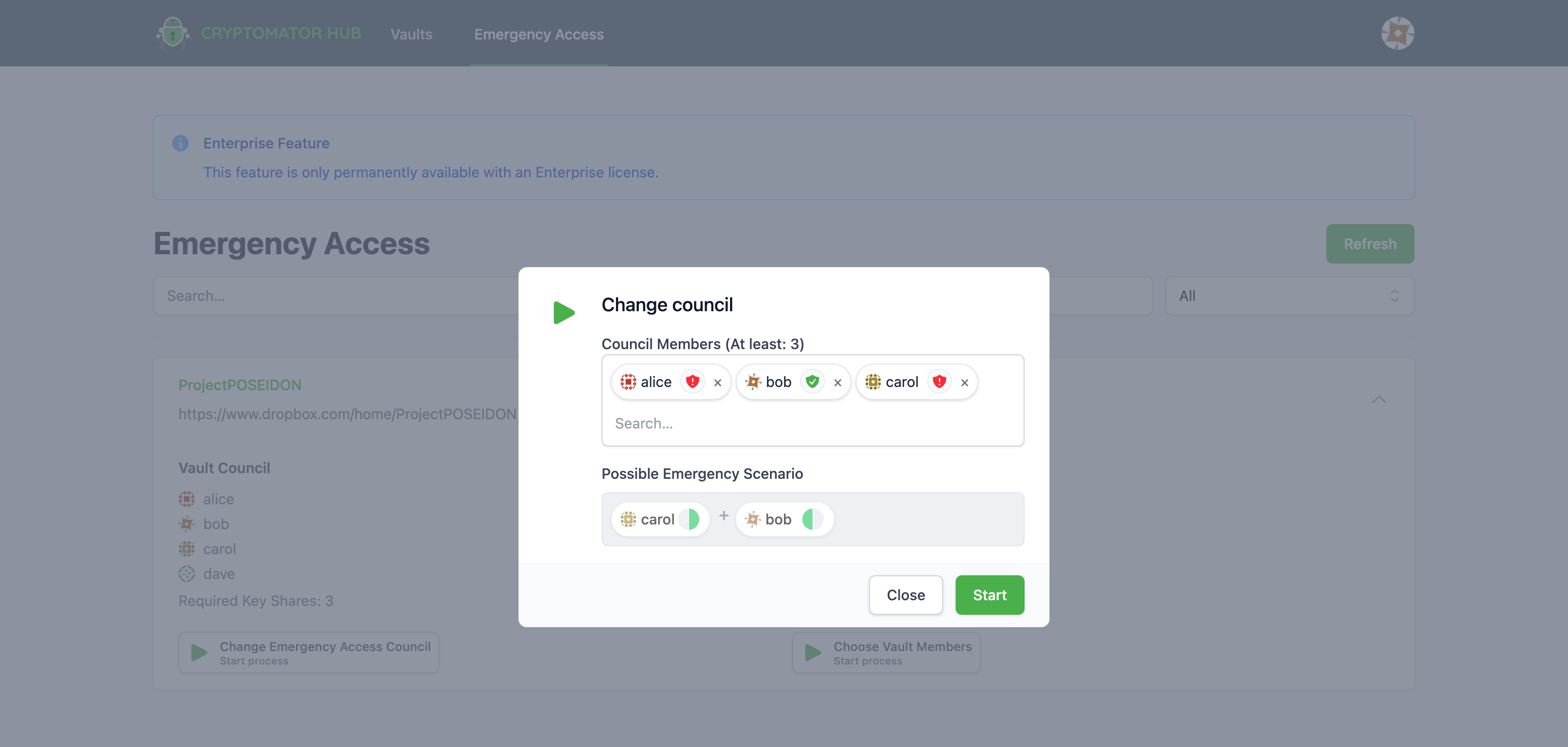
The Change Emergency Access Council process allows you to select a new council.
The minimum required number of members is configured in the Admin settings.
Approve a Recovery Process
To view or approve running Emergency Access processes, open the Emergency Access list.
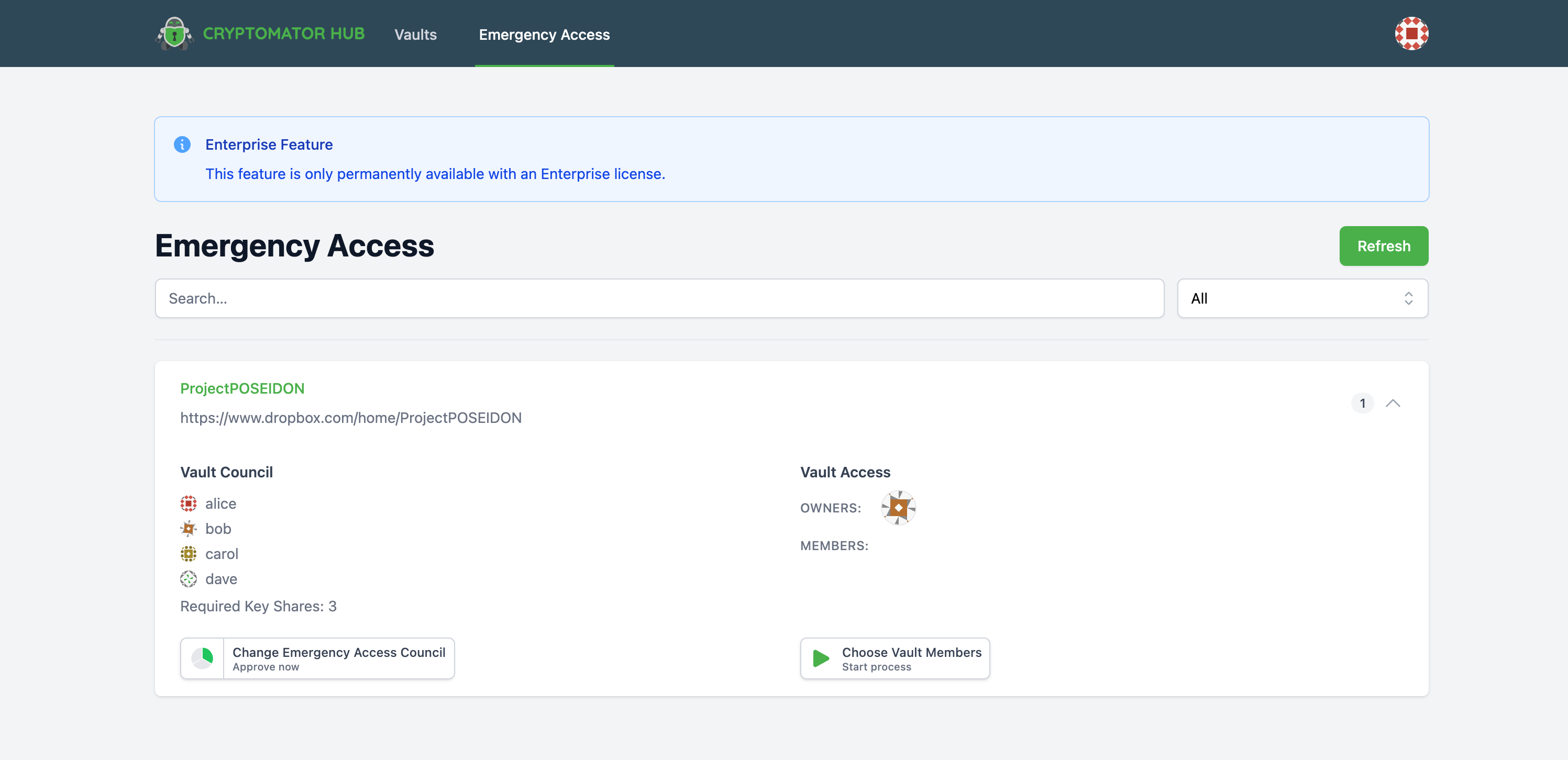
If an Emergency Access process is running for a vault, the vault is displayed with a process button.
If you haven't approved the process, the button includes Approve now.
Approve a running process in three steps:
- Open the vault in the
Emergency Accesslist. - Click
Approve nowto open theApprove Emergency Accessdialog. - Review the details and click
Approve.
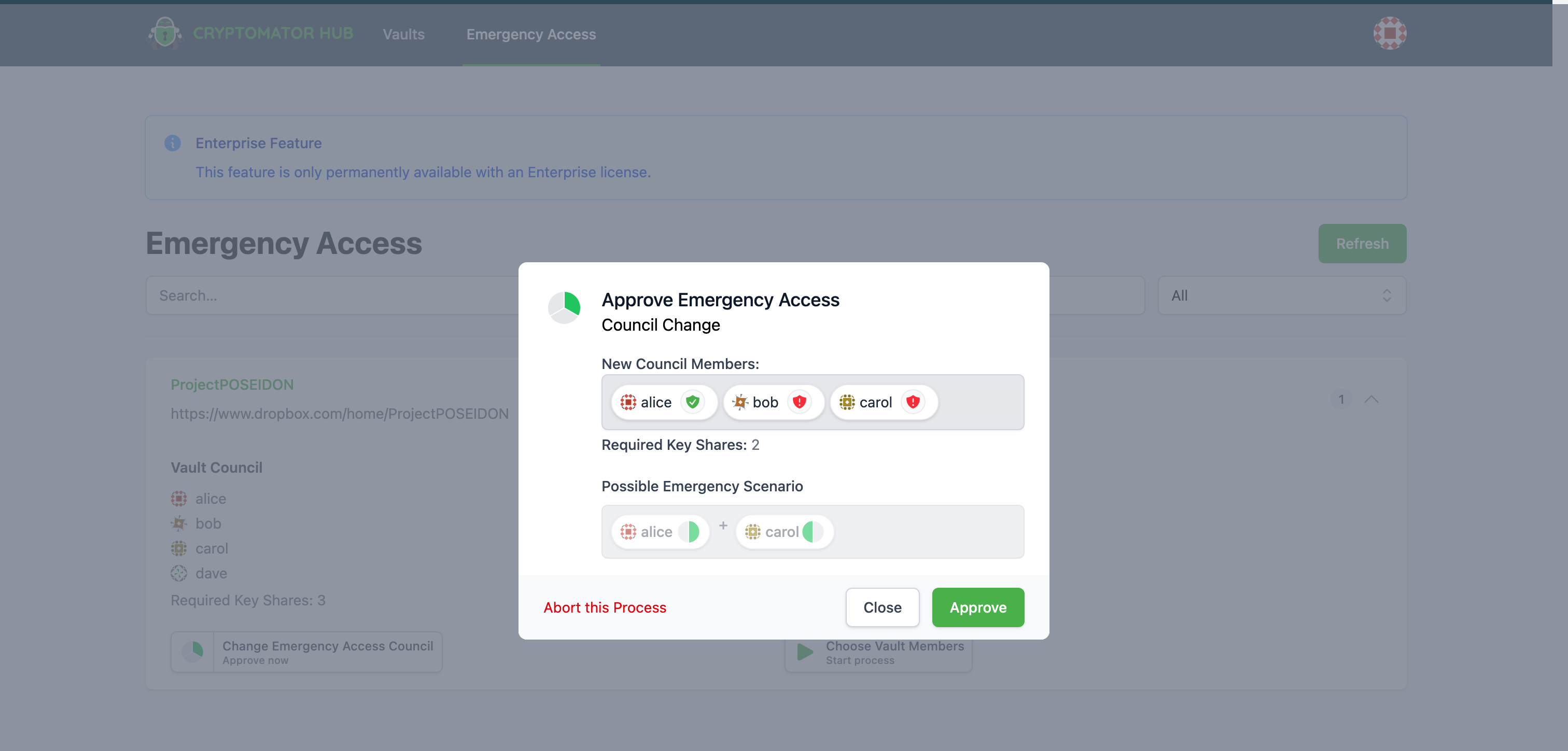
After submitting your share, the button shows Waiting for other approvals. You can track the ongoing process progress in the same process button and its details popover.
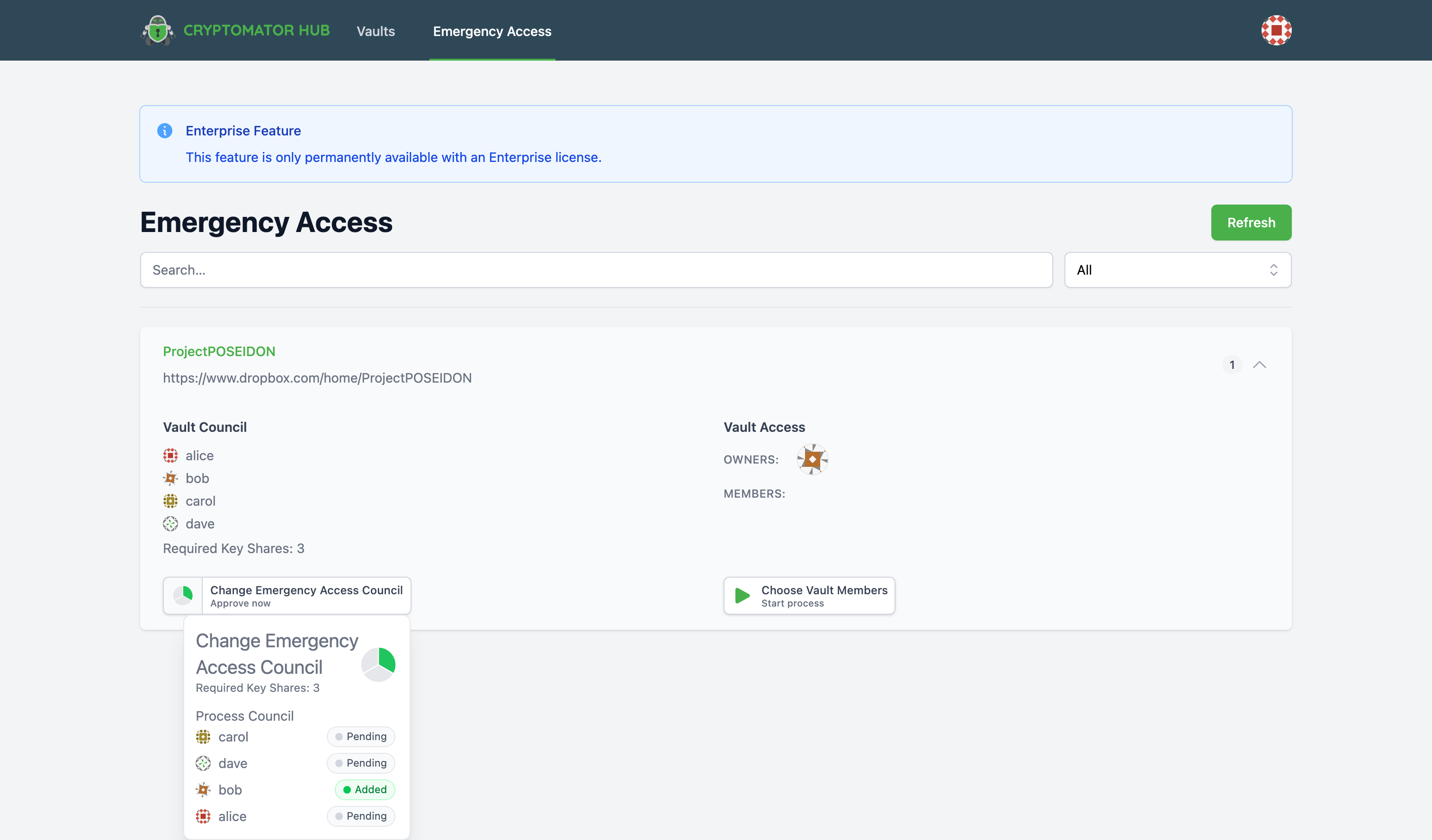
You can also inspect details before approving. Hover (or click) the segment ring area on the left side of the process button to open the process details popover. The popover shows:
- process type and required approvals
- current progress
- process council members
- per-member status (
Added/Pending)
Complete a Recovery Process
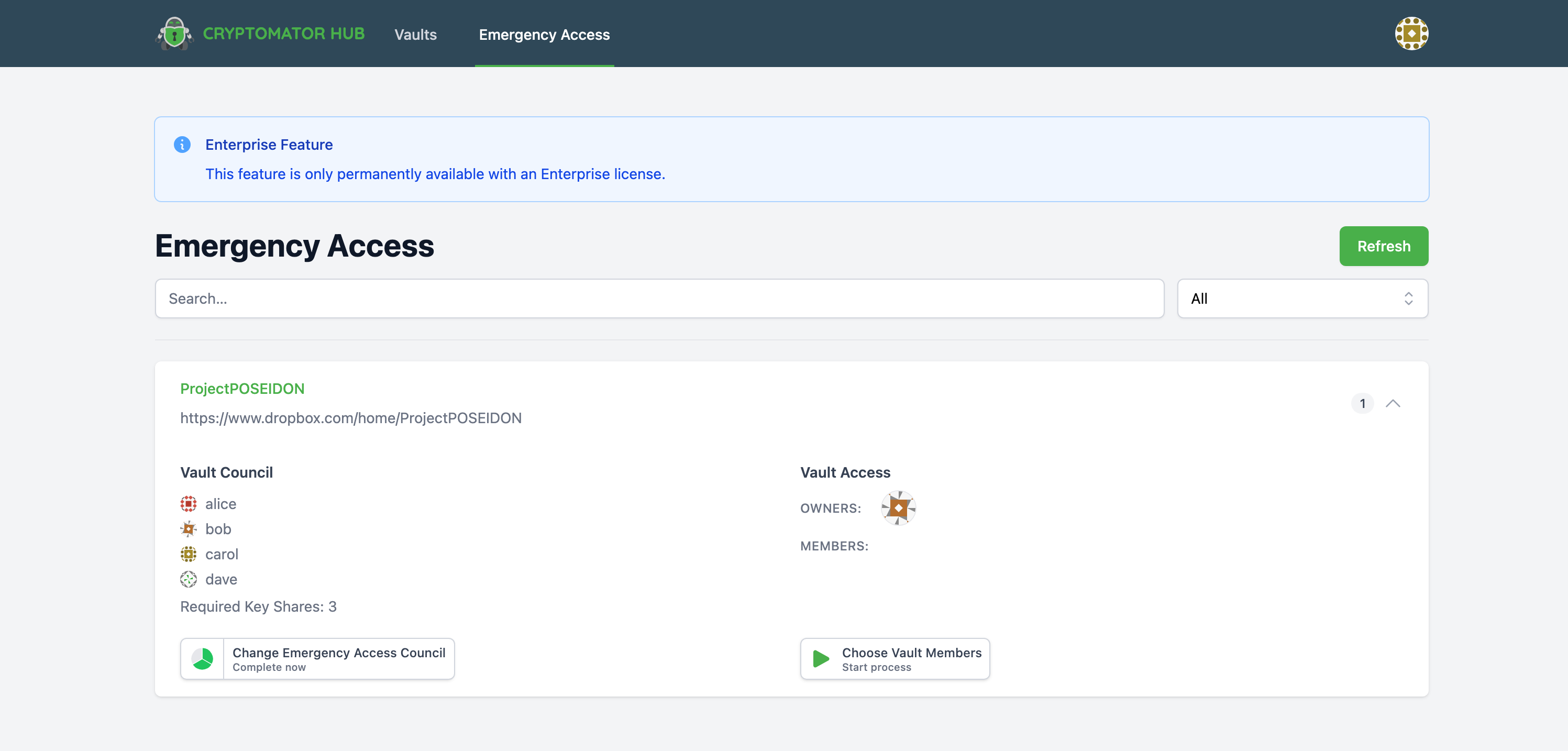
As soon as enough shares are available, the process button in the Emergency Access vault list shows Complete now.
Click Complete now to open the Complete Emergency Access dialog. In this dialog, review the process details and click Complete Process to finalize the recovery process.
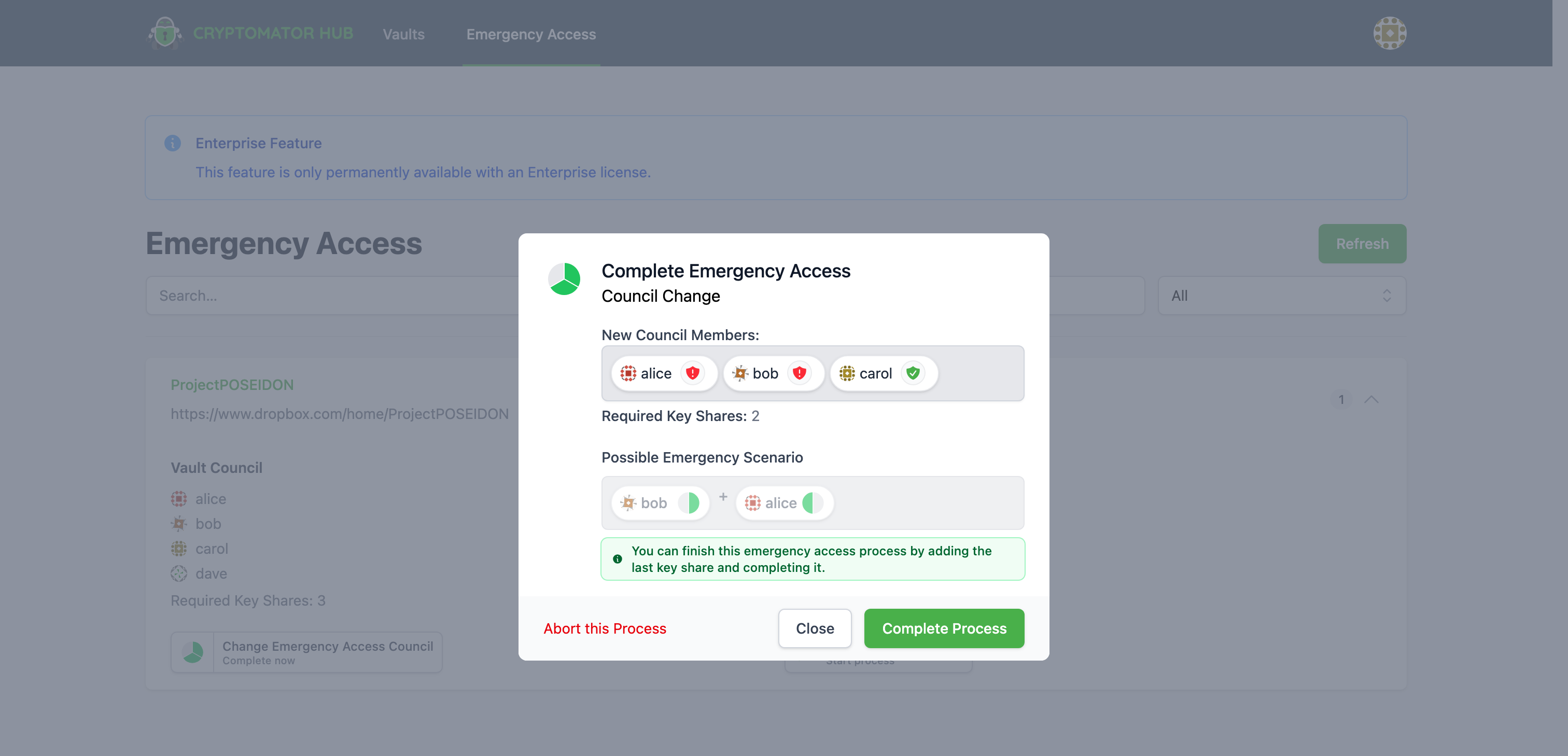
Results by type:
Choose Vault Members: Vault roles are updated and required access grants are redistributed.Change Emergency Access Council: The old council is replaced by the new council.
After successful completion, the process is removed.
Abort a Recovery Process
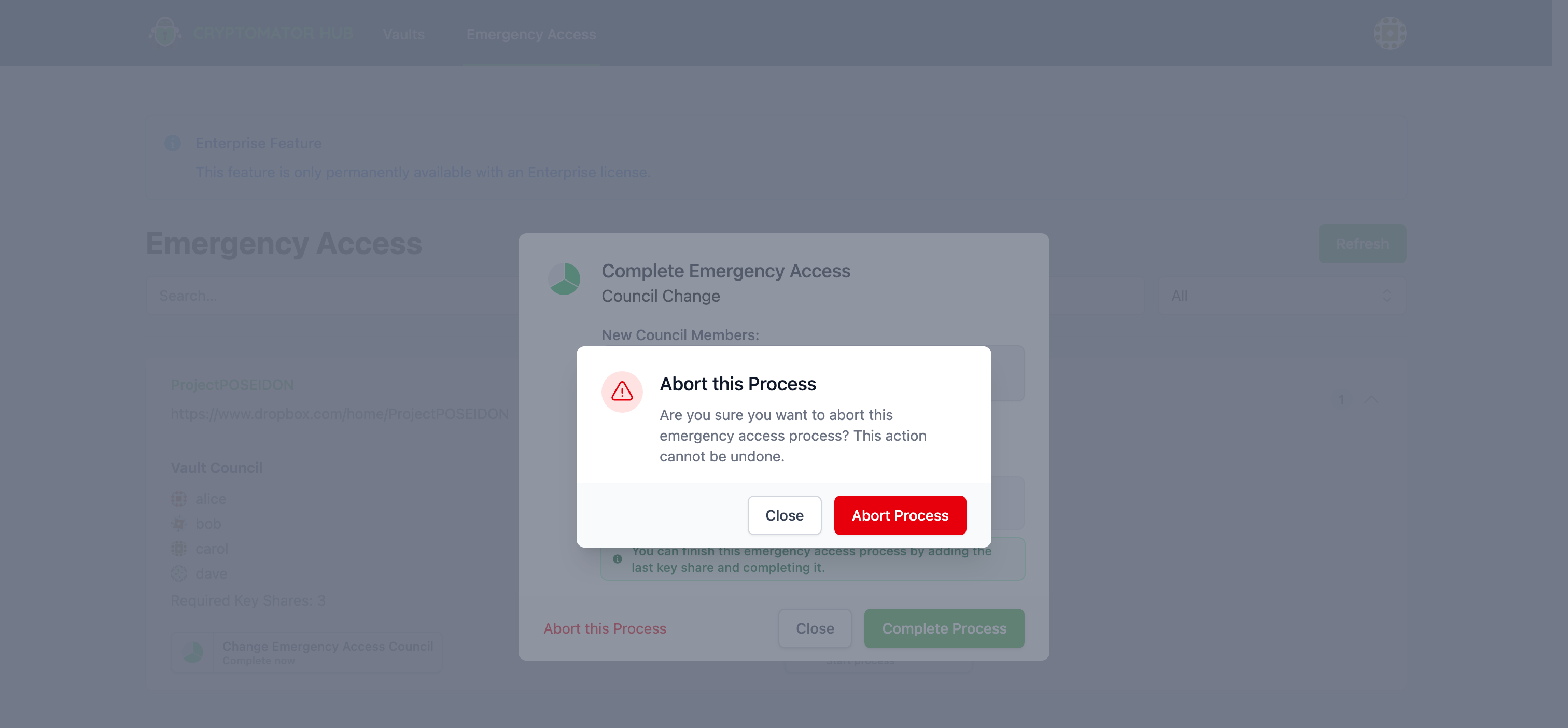
Running processes can be canceled in the dialog using Abort this Process.
Typical States and Notes
The following warning states can appear in the Emergency Access list:
No Vault Council Member anymore: The user is still part of a running process but no longer part of the current vault council. What to do: Ask a current council member to start a new process with the correct council composition.Broken Emergency Access: Too few valid shares remain (for example after council members reset their accounts). What to do: Reconfigure the council in vault details and ensure enough active council members can provide shares.No Redundancy: No fault tolerance in the council. What to do: Increase the number of council members or reduce the required threshold so one unavailable user does not block recovery.