Verify Installer Signatures
If you are not sure whether an alleged Cryptomator installer is legitimate, you can verify its authenticity and integrity.
GPG Signature
All Cryptomator release artifacts include a .asc signature file that you can use to verify authenticity and integrity using GPG. This method works on Windows, Linux, and macOS (with GPG installed). Download both the installer and the corresponding .asc signature file, then verify in the following steps:
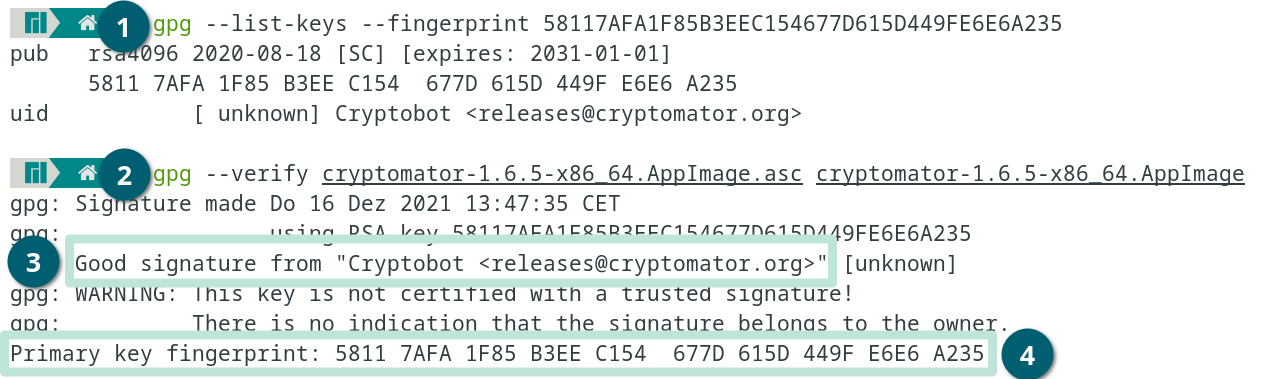
- Use
gpg --list-keys --fingerprint 58117AFA1F85B3EEC154677D615D449FE6E6A235to make sure you have loaded the GPG key. If it is not available, download it from a keyserver e.g.:gpg --keyserver keys.gnupg.net --recv-keys 58117AFA1F85B3EEC154677D615D449FE6E6A235or another trusted source like from Cryptobot using Githubcurl -sSL https://github.com/cryptobot.gpg | gpg --import -. - Use
gpg --verify <installer-file>.asc <installer-file>to execute the verification process (replace<installer-file>with the actual filename of your downloaded installer).
The message should say:
gpg: Good signature from "Cryptobot <[email protected]>"Primary key fingerprint: 5811 7AFA 1F85 B3EE C154 677D 615D 449F E6E6 A235
If shown, you can ignore the following warning:
gpg: WARNING: This key is not certified with a trusted signature!
Windows (exe, msi)
Our Windows installers are signed using a code signing certificate. You can verify the signature in three simple steps:
- Open Terminal or PowerShell (found in Windows Start menu).
- Run either of the following commands to check the signature of the corresponding file:
Get-AuthenticodeSignature -FilePath "~\Downloads\Cryptomator-*.msi"Get-AuthenticodeSignature -FilePath "~\Downloads\Cryptomator-*.exe"
- Verify that the output includes:
- Column
SignerCertificatewith value9DE645D63969984E0127C0F65BDA4652D7458056(*) - Column
Statuswith valueValid - no errors
- Column
*for older releases, see below.
If the installer is properly signed, you should see output similar to:
SignerCertificate                Status    StatusMessage           Path
-----------------                ------    -------------           ----
BB0E...                          Valid     Signature verified.     Cryptomator-1.19.1-x64.msi
You can also inspect the certificate manually:
- Right-click on the cryptomator installer file and click on Properties.
- Select the Digital Signatures tab: It should show one or more signatures by
Skymatic GmbHunder Embedded Signatures.- For releases since 1.18.0, the
exerelease artifact will have two signatures, and themsirelease artifact will have one signature.
- For releases since 1.18.0, the
- Click on the first signature, and then click Details.
- Click on View Certificates and select the field
Thumbprint.
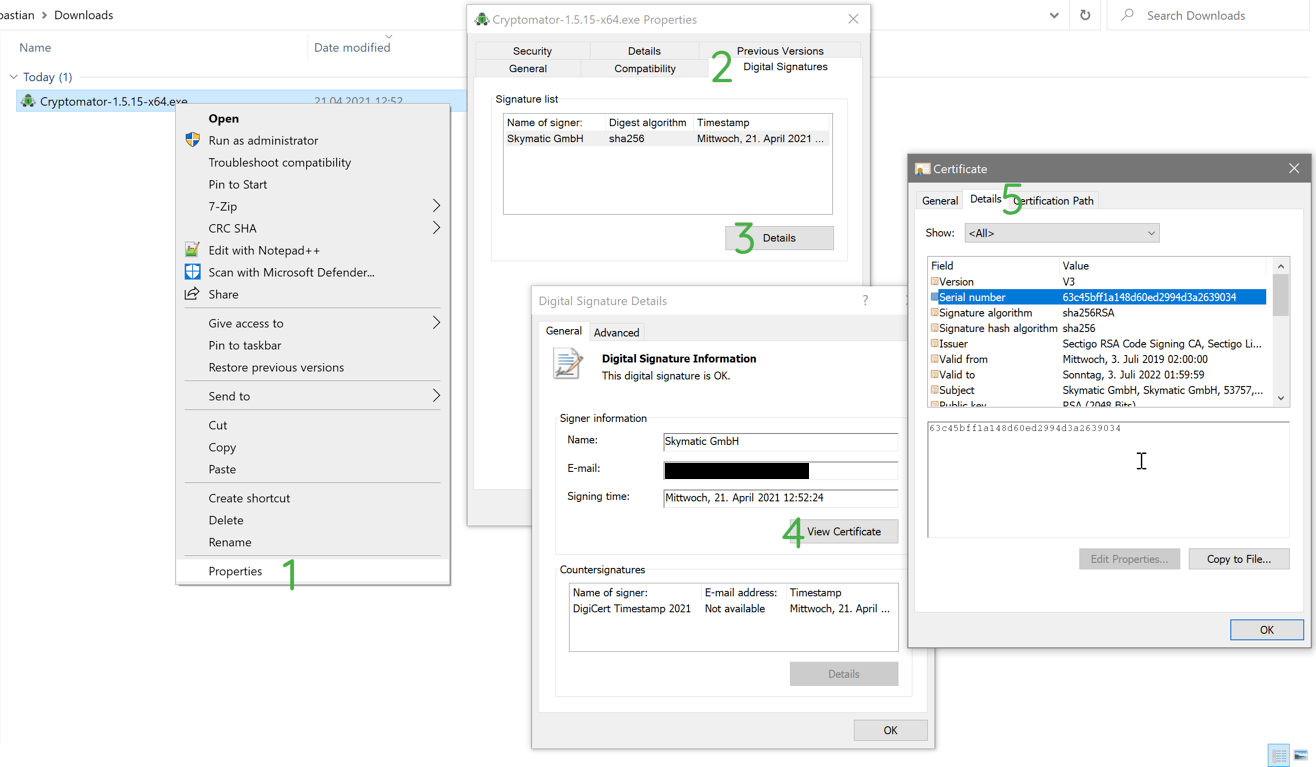
Certificate thumbprints for all Cryptomator versions
Every Cryptomator installer is signed with a certificate. A certificate is identified by its thumbprint. The signing certificate changed over time and the following table shows for each version the certificate thumbprint:
| Version(s) | Certificate Thumbprint |
|---|---|
| 1.19.4 | 9DE645D63969984E0127C0F65BDA4652D7458056 |
| 1.19.3 | F255C2D35DDB45D20CE854EBF393A266DB16736C |
| 1.19.2 | 20F30D7C5B1AB3ACAFA4AB27874ACBC4B47B0697 |
| 1.19.1 | BB0EEBF8E92E4584DF4B6AE4F9577B60BEB5DF4C |
| 1.19.0 | 14524B1F8A3A1CA8B24B769C7C6DC92851120B22 |
| 1.18.1 | 53FA929F6D50D5E2AE59A7C9A9750D373AFF7D40 |
| 1.18.0 | 4DC9A70B94F731562A9C37B4391C4FD5BEC72C94 |
| 1.6.11 to 1.17.1 | 5FC94CE149E5B511E621F53A060AC67CBD446B3A |
| 1.4.12 to 1.6.10 | FF52240075AD7D14AF25629FDF69635357C7D14B |
| up to 1.4.11 | 6FDEC9DFCFE59E6BAEE64B7ED97F00E120E70D97 |
macOS (app)
On macOS, you can verify the code signature of the Cryptomator app using the built-in codesign utility. This verification confirms the app's authenticity and integrity:
- Open Terminal (found in Applications > Utilities).
- Run either of the following commands to check the signature of the corresponding file:
codesign -dv ~/Downloads/Cryptomator-*.dmgcodesign -dv /Applications/Cryptomator.app
- Verify that the output includes:
TeamIdentifier=YZQJQUHA3L- The signature should be valid with no errors
If the app is properly signed, you should see output similar to:
Executable=/Applications/Cryptomator.app/Contents/MacOS/Cryptomator
Identifier=org.cryptomator
...
TeamIdentifier=YZQJQUHA3L