Vault Recovery
This section contains instructions for recovering Cryptomator Hub vaults using the vault recovery key.
Cryptomator Hub vaults can be recovered in two different ways:
- Online Recovery - Reestablishes Hub-controlled access management for a vault in case it can no longer be managed in Hub
- Offline Recovery - Restores vault data access of a Hub-managed vault in case of a disaster (e.g. Cryptomator Hub is down and immediate data access is needed)
Online Recovery
This recovery method should be used if a vault can no longer be managed in Hub, for example because it lost all its owners or was accidentally removed from Hub. In the process, a new Hub vault with the same key material as the "to-be-recovered" vault is created. The membership information of the old vault cannot be migrated, hence all users/groups need to be added manually afterwards.
Requirements:
- Access to Cryptomator Hub
- Write access to the storage location of the vault
- Access to the recovery key of the vault
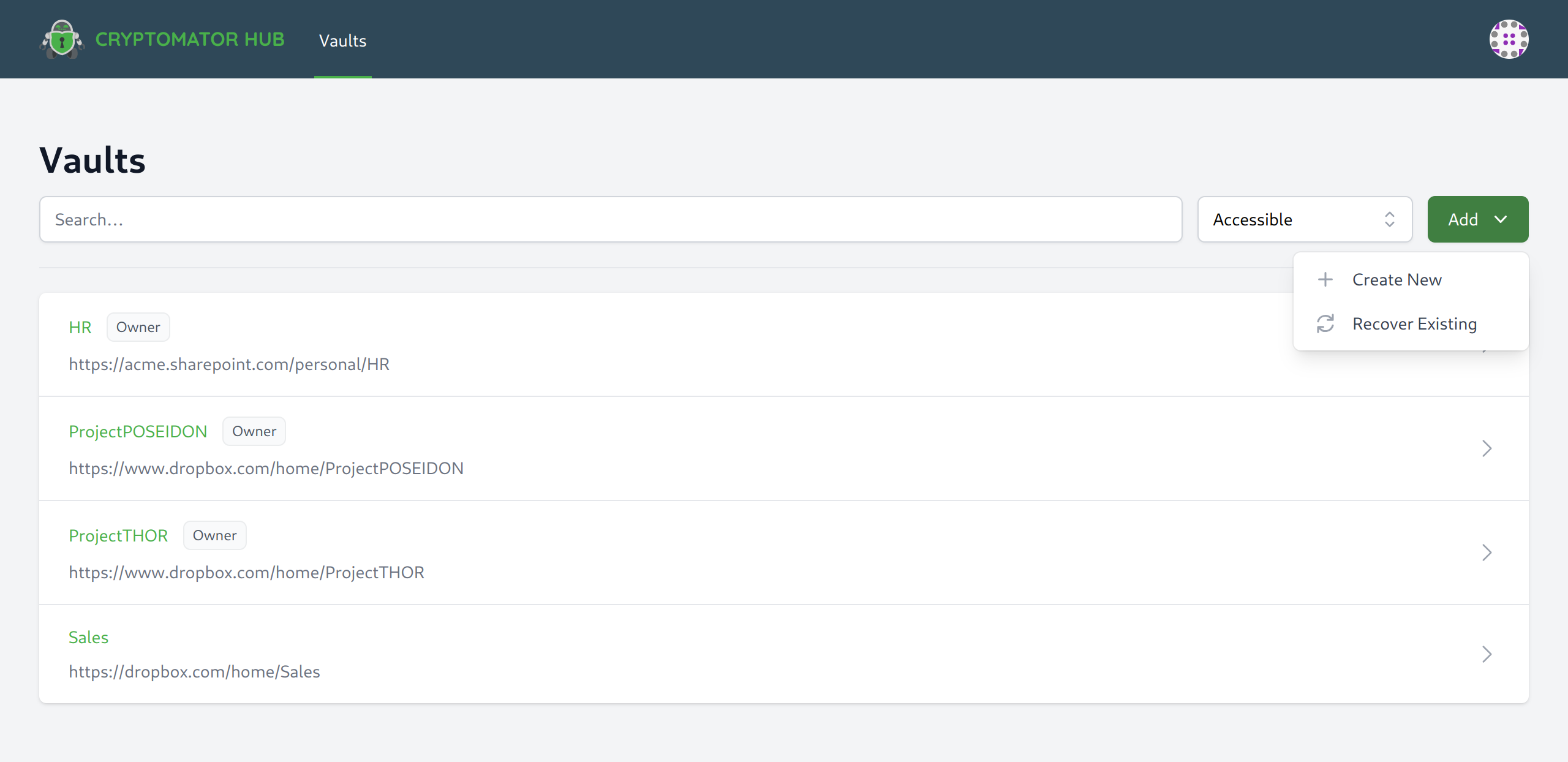
In Cryptomator Hub navigate to the vault list, click Add and Recover Existing
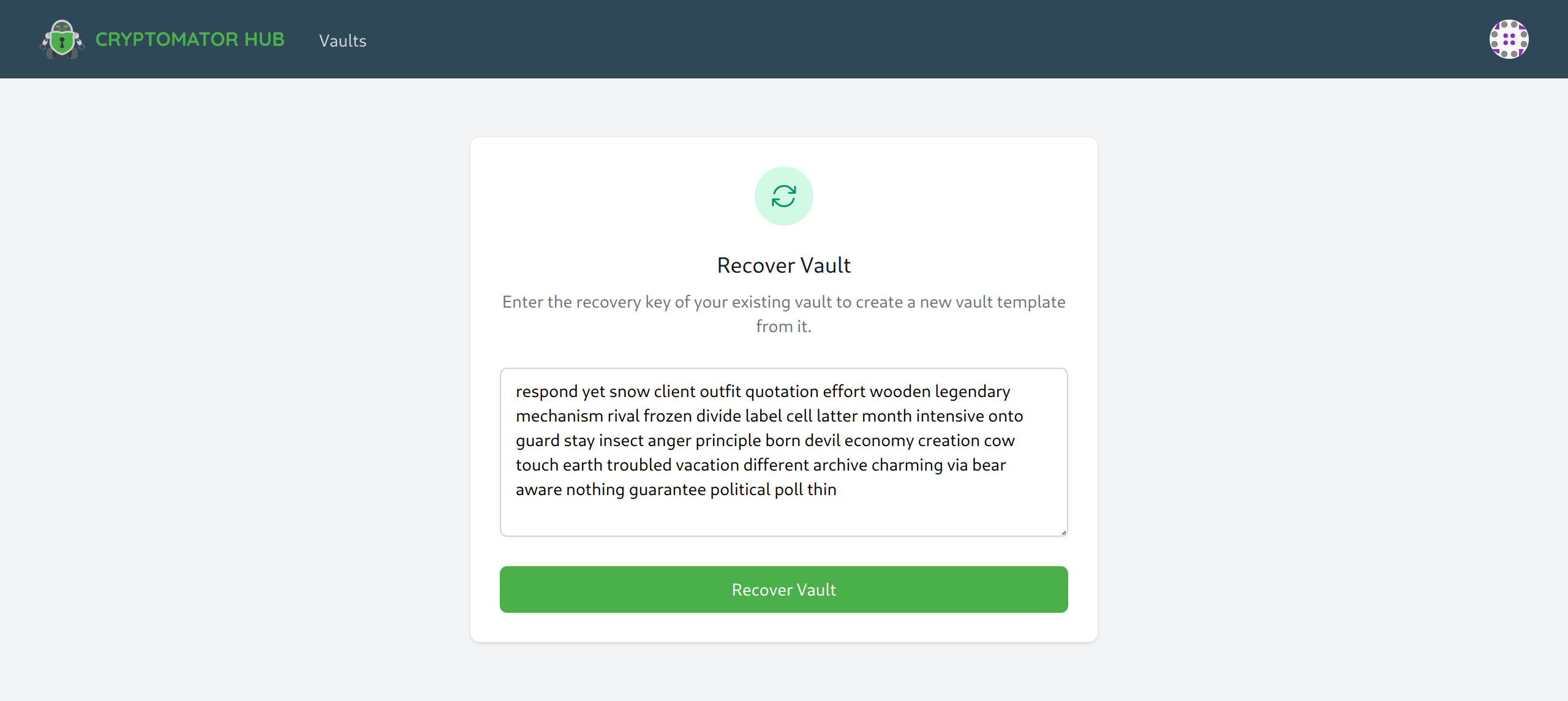
Enter the recovery key for the vault you want to restore. If you enter a recovery key from a different vault, the recovery will not work.
Proceed with Recover Vault.
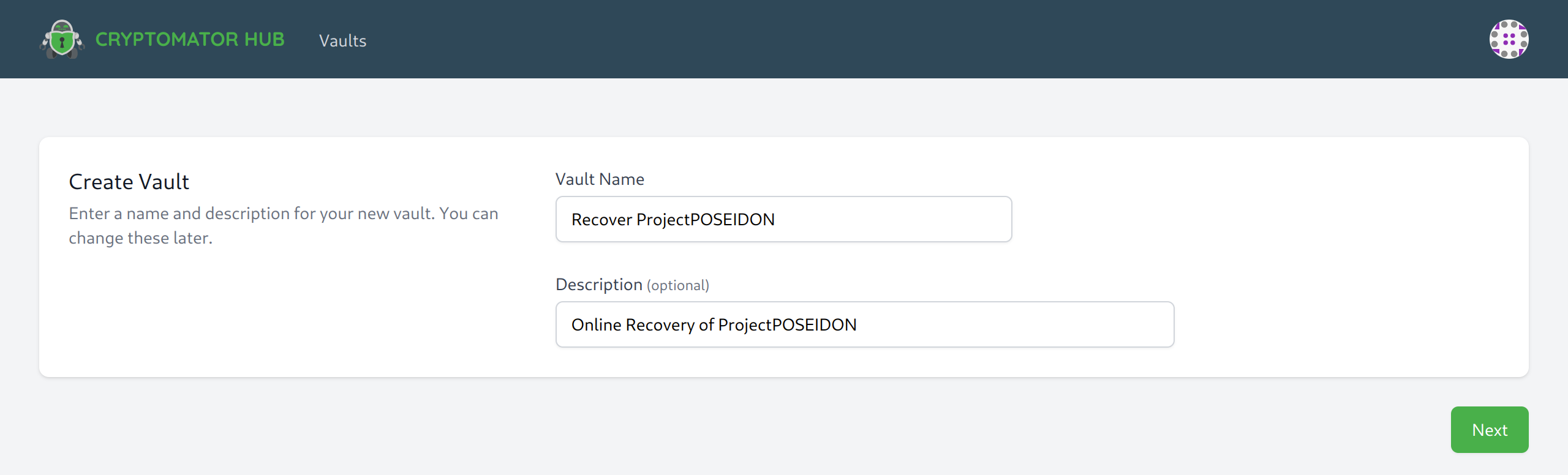
Enter a name and an optional description for the new vault. As its creator, you become the owner of the recovered vault and can grant or revoke access to it.
If successful, a new vault has been created. Proceed as follows:
- Click on
Download zipped vault folderof the new created vault - Unzip the downloaded folder
- Copy the file
vault.cryptomatorof the unzipped folder - Browse locally on the device, directly in the cloud or network storage to the location of the vault folder. In that folder, replace the existing
vault.cryptomatorfile with the one you just copied.
Afterwards, you can manage vault data access over the newly created vault in Hub. You will need to regrant permission to the vault members, and then the vault can be unlocked by the team.
Offline Recovery
This recovery method should only be used in an emergency, i.e. immediate data access is needed but Cryptomator Hub not reachable. In the process, the authentication needed to unlock the vault is changed from Hub- to password-based by creating/changing vault configuration files. If these changes are synchronized to the online storage, everyone with the chosen password can unlock and access the vault data without requiring a connection to Cryptomator Hub. If you don't want that, ensure that the vault is stored at an offline location without any kind of synchronization.
This process is reversible. See the end of this section.
Requirements:
- Access to the Cryptomator desktop application
- Write access to the storage location of the vault
- Access to the recovery key of the vault
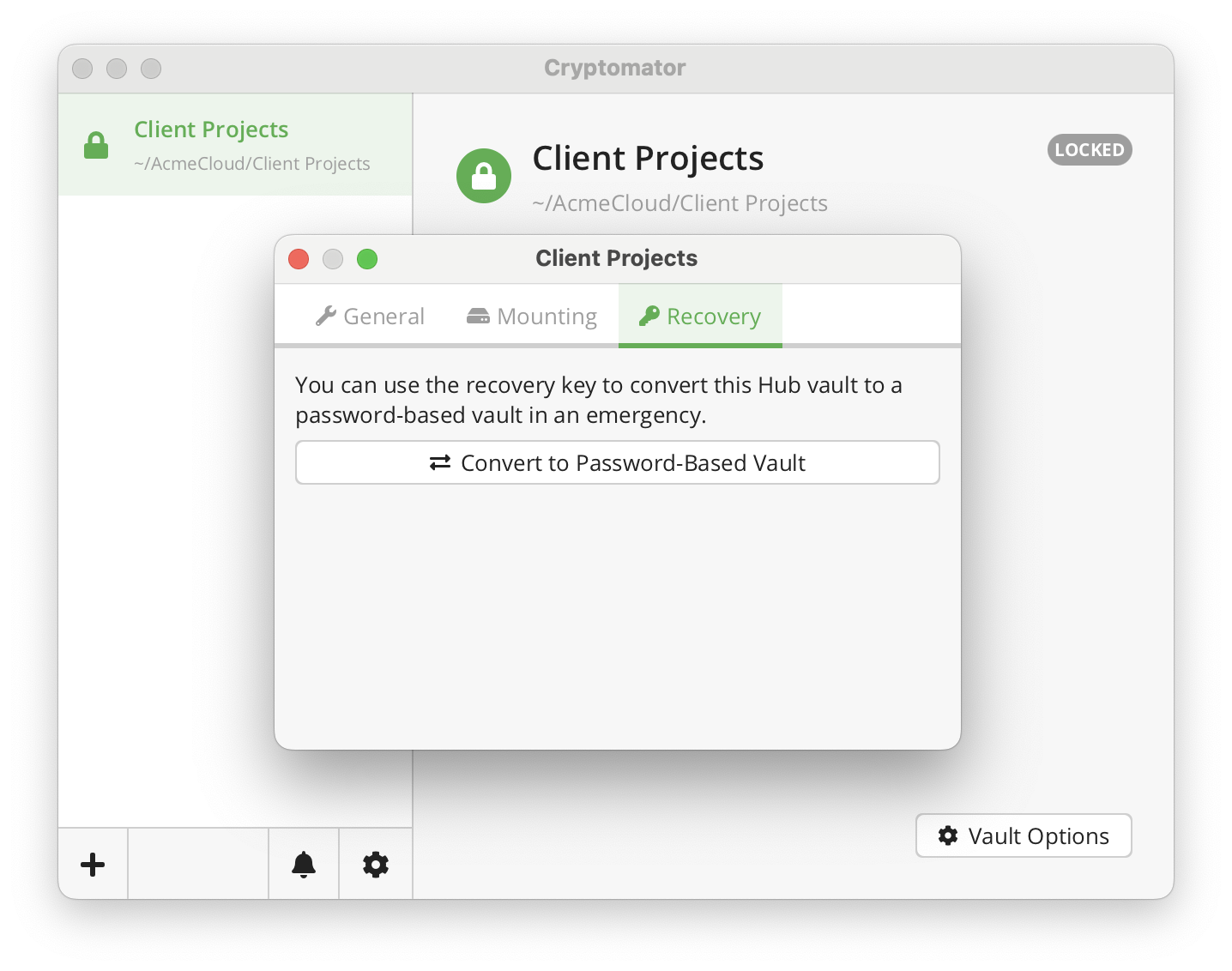
Open the Cryptomator desktop app, right-click on the vault you want to restore in the vault list, click Show vault options in the opened context menu.
In the opening window, select the Recovery, read the label description and click the Convert to Password-Based Vault button.
Enter the recovery key for the vault you want to restore. If you enter a recovery key from a different vault, the recovery will not work. Proceed with Next.
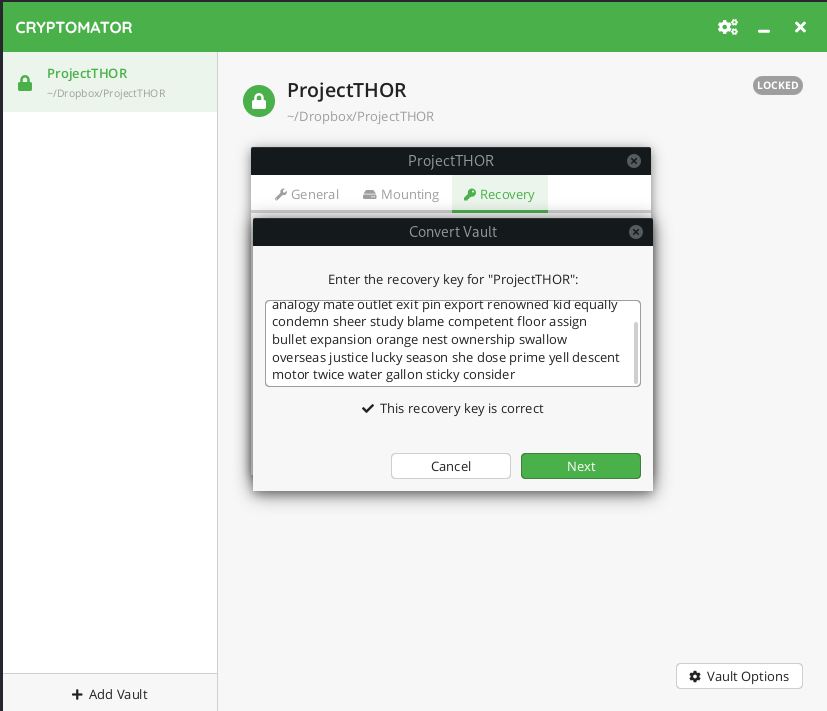
In the next step choose a good password used for unlocking the vault. Cryptomator requires at least 8 characters but we recommend you to use a longer phrases such as pass-sentences. The bar below the password field estimates the strength of your password.
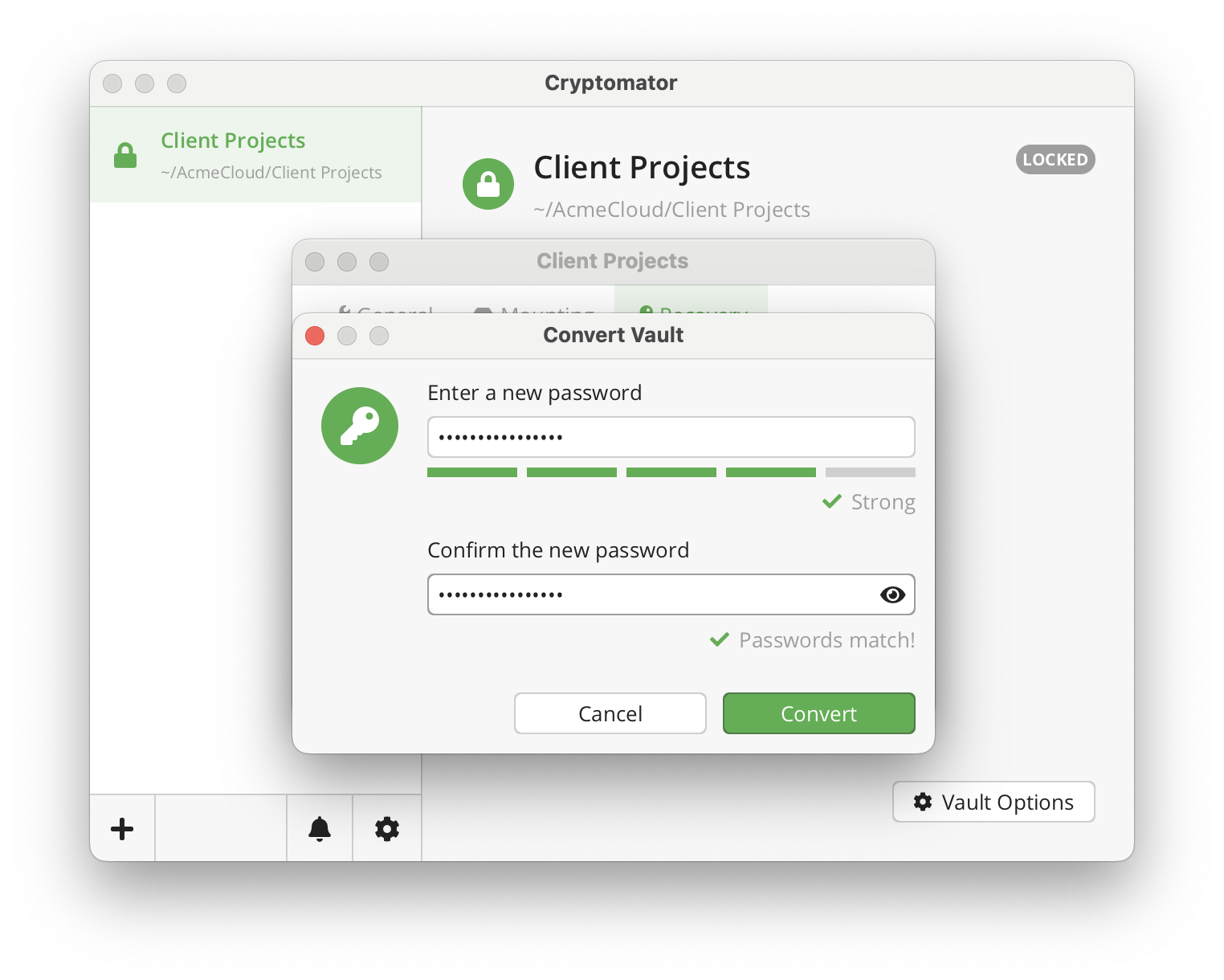
If the conversion was successful, a success message is shown. You can close the dialog box. This vault is now converted to a password-based vault and can be unlocked with the above chosen password.
Reversing Offline Conversion
You can reverse the offline conversion. In order to do that, remove the following files:
- all files named or starting with
masterkey.cryptomator vault.cryptomator- the most recent
vault.cryptomator.XXXXXXXX.bkup
Then restore the original config by renaming vault.cryptomator.XXXXXXXX.bkup to vault.cryptomator.
You can then unlock the vault again using the Cryptomator Hub.