User & Group Management
Users and groups are managed directly in the Cryptomator Hub admin interface. As an administrator, you can create, edit, and delete users and groups, assign roles, and manage group memberships.
Access the user and group management from the navigation bar in the admin area.
User Management
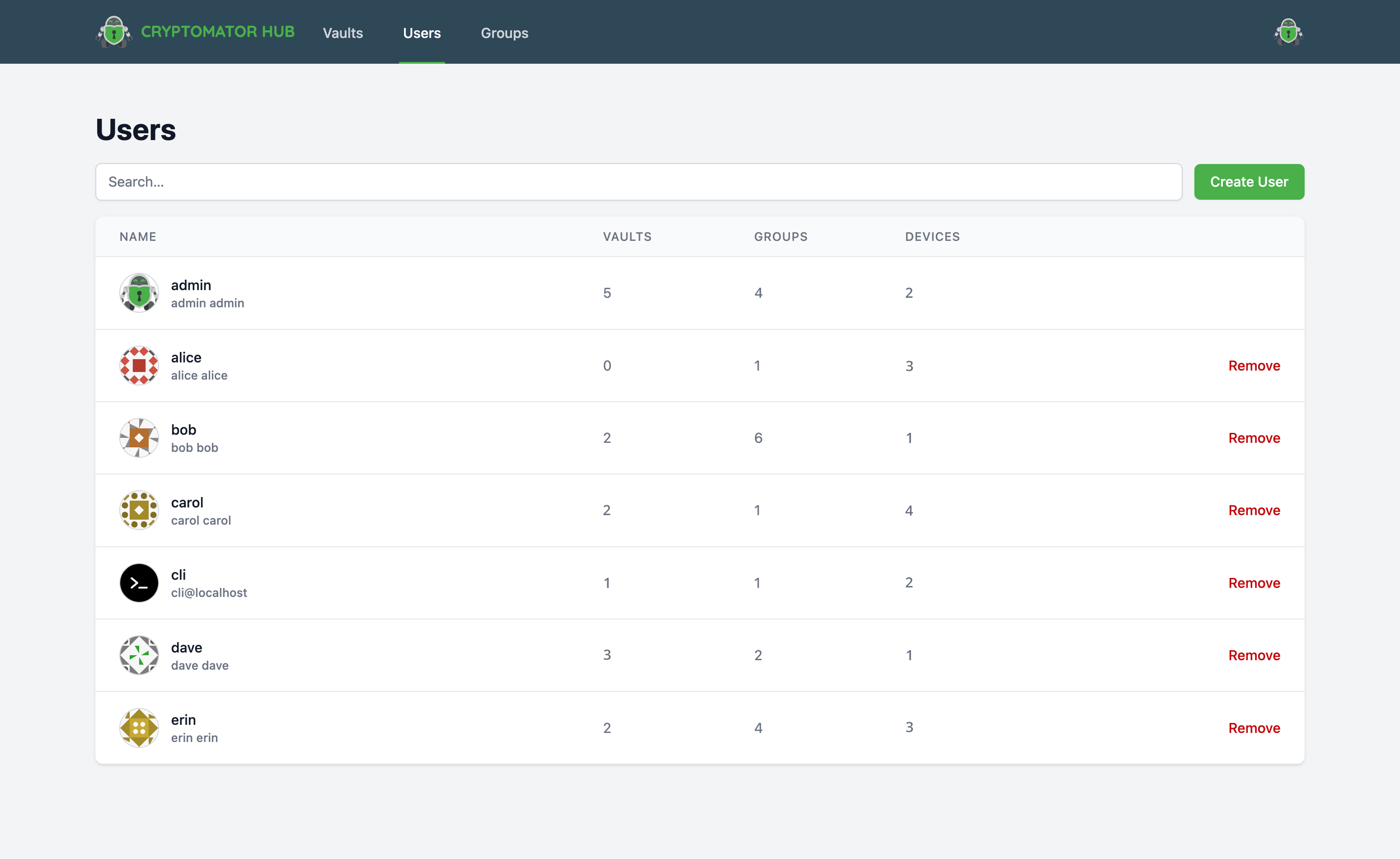
User List
The user list displays all users in your Hub instance. You can search for users by name or email and see key metrics for each user:
- Number of accessible vaults
- Number of group memberships
- Number of registered devices
Create User
To create a new user, click the "Create User" button in the user list. Fill in the following fields:
- Profile Picture URL: Optional URL to a profile picture
- First Name: The user's first name
- Last Name: The user's last name
- Username: A unique identifier for the user (cannot be changed later)
- Email: The user's email address
- Roles: Assign roles to the user (see Roles)
- Password: Set an initial password for the user
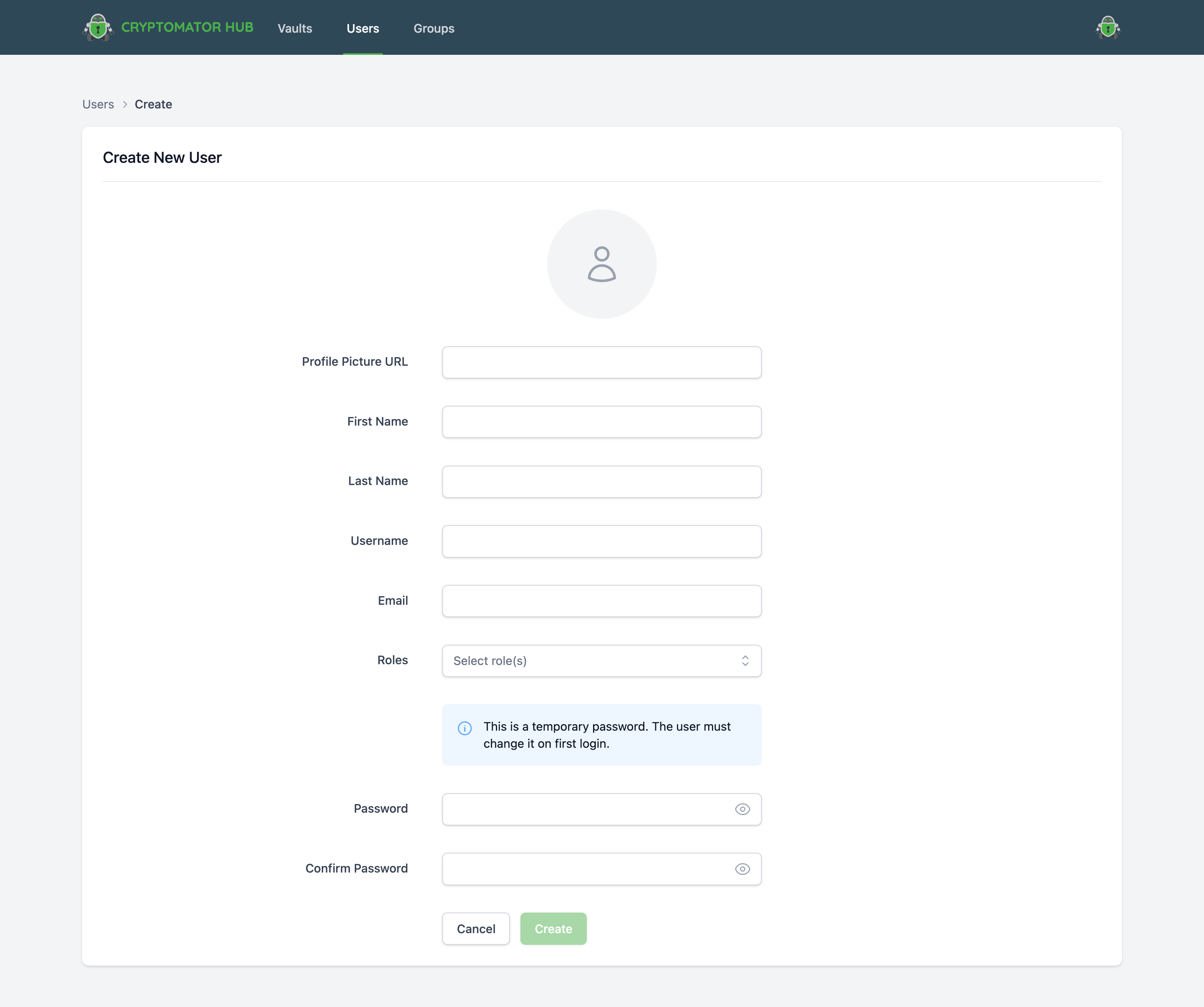
After creation, the user can log in with their credentials and complete the account setup.
User Details
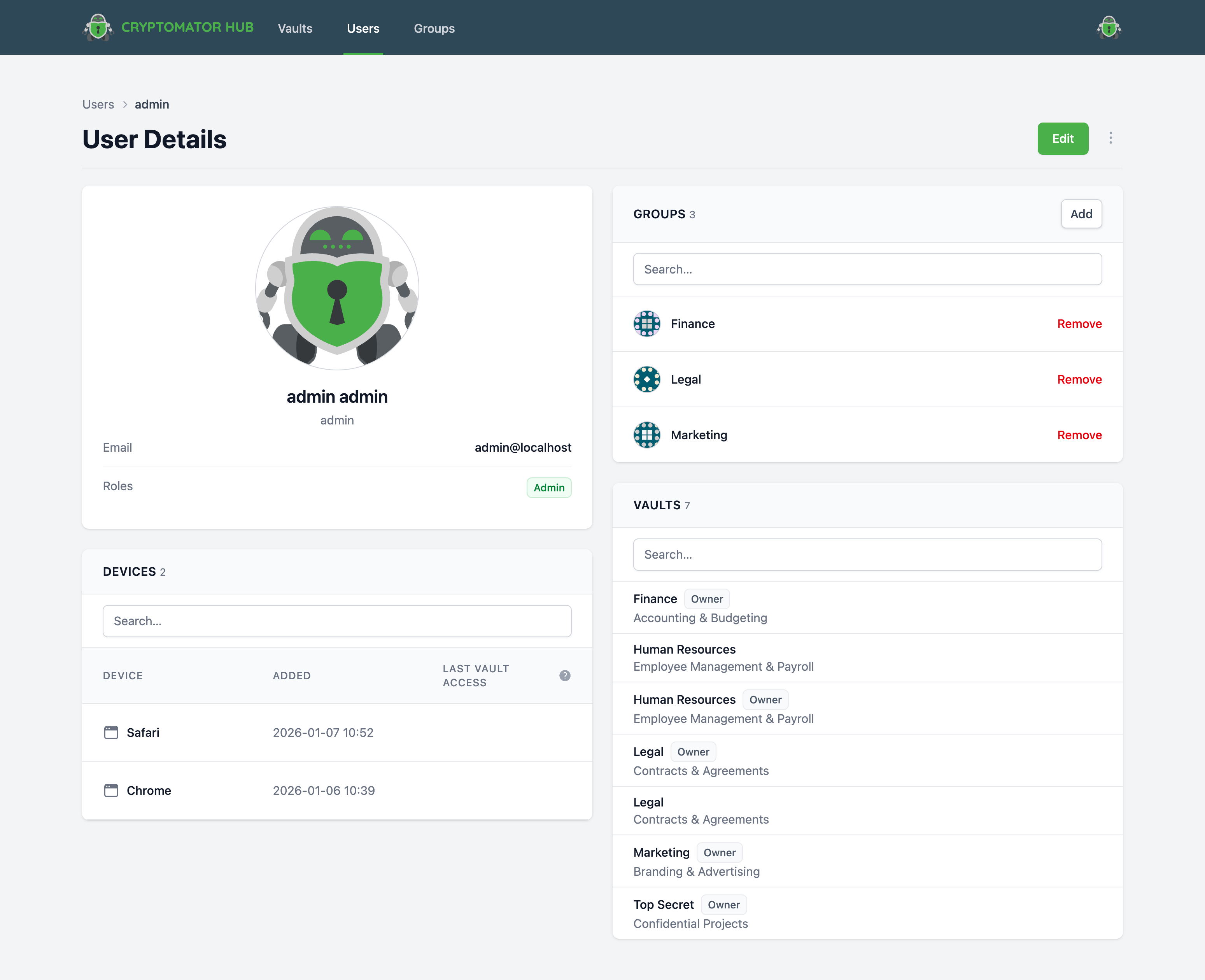
The user detail page shows comprehensive information about a user:
- Groups: All groups the user is a member of
- Accessible Vaults: Vaults the user has access to (directly or through group membership)
- Devices: All registered devices of the user
- Legacy Devices: Devices registered with older Hub versions (see Legacy Devices)
Edit User
To edit a user, navigate to the user's detail page and click "Edit". You can modify:
- Profile Picture URL
- First Name
- Last Name
- Roles
- Password (set a new password)
Username cannot be changed after user creation.
Delete User
To delete a user, you can either click the delete button in the user list or navigate to the user's detail page and click on the options button next to the "Edit" button, then select "Delete". A confirmation dialog will appear. Deleting a user will:
- Remove the user from all groups
- Revoke access to all vaults
- Delete all registered devices
This action cannot be undone.
Group Management
Groups allow you to organize users and grant vault access to multiple users at once.
Group List
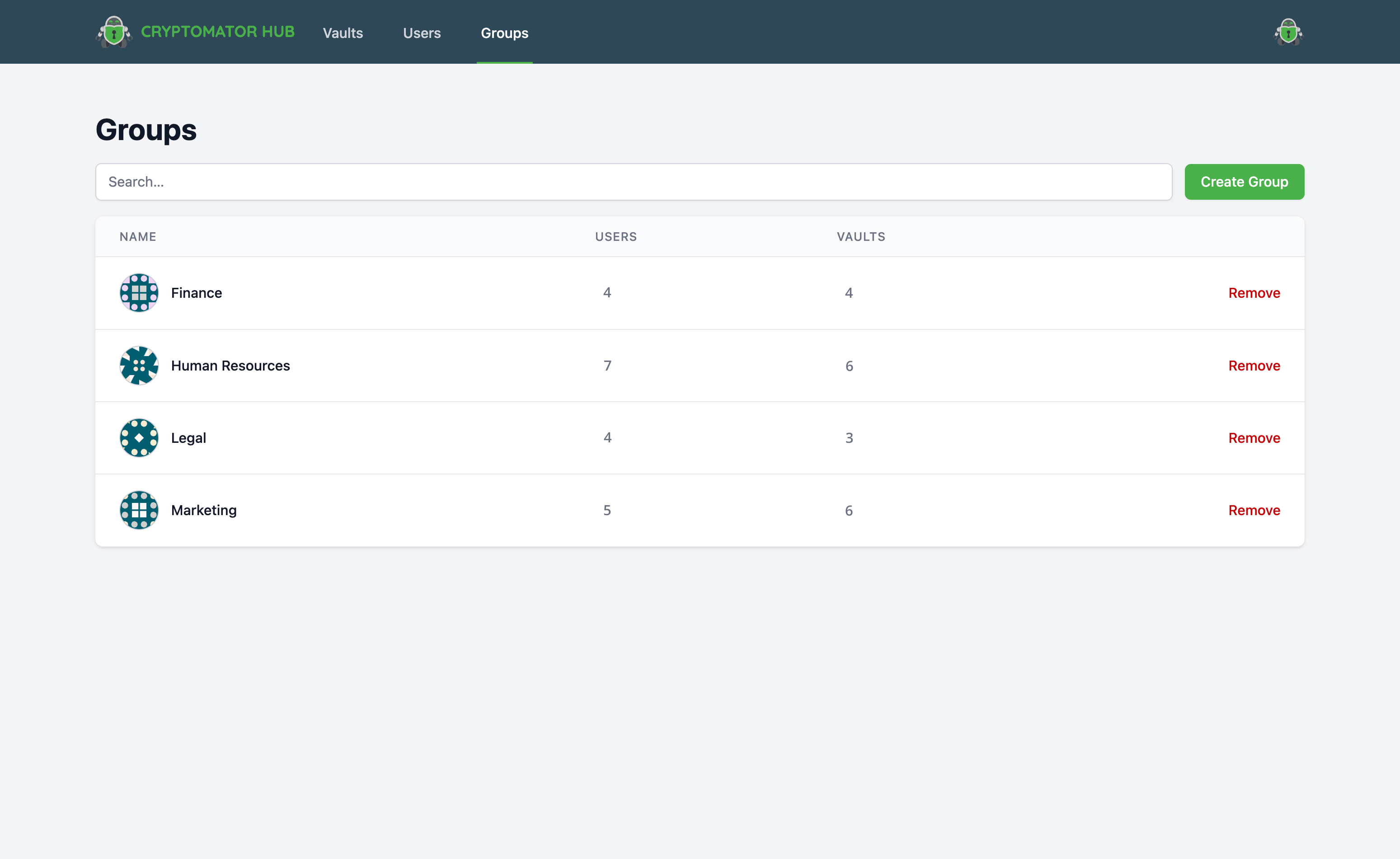
The group list displays all groups with:
- Number of members
- Number of accessible vaults
Create Group
To create a new group, click the "Create Group" button. Fill in:
- Profile Picture URL: Optional URL to a group picture
- Name: A descriptive name for the group
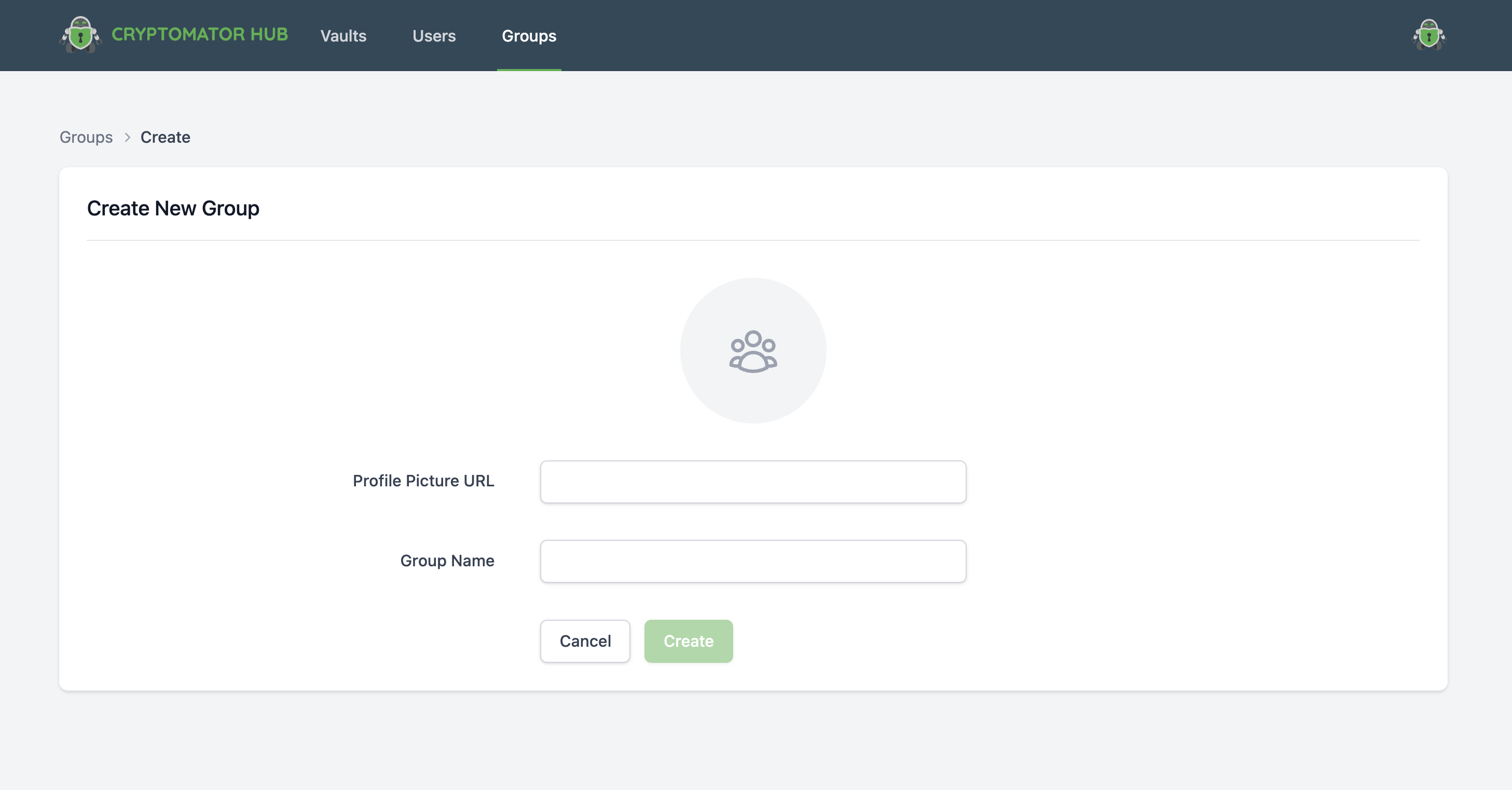
Edit Group
To edit a group, navigate to the group's detail page and click "Edit". You can modify the group name and profile picture URL.
Delete Group
To delete a group, you can either click the delete button in the group list or navigate to the group's detail page and click on the options button next to the "Edit" button, then select "Delete". A confirmation dialog will appear. Deleting a group will:
- Remove all members from the group
- Revoke group-based vault access (users may still have direct access)
This action cannot be undone.
Group Details
The group detail page shows:
- Members: All users who are members of this group
- Accessible Vaults: Vaults the group has access to
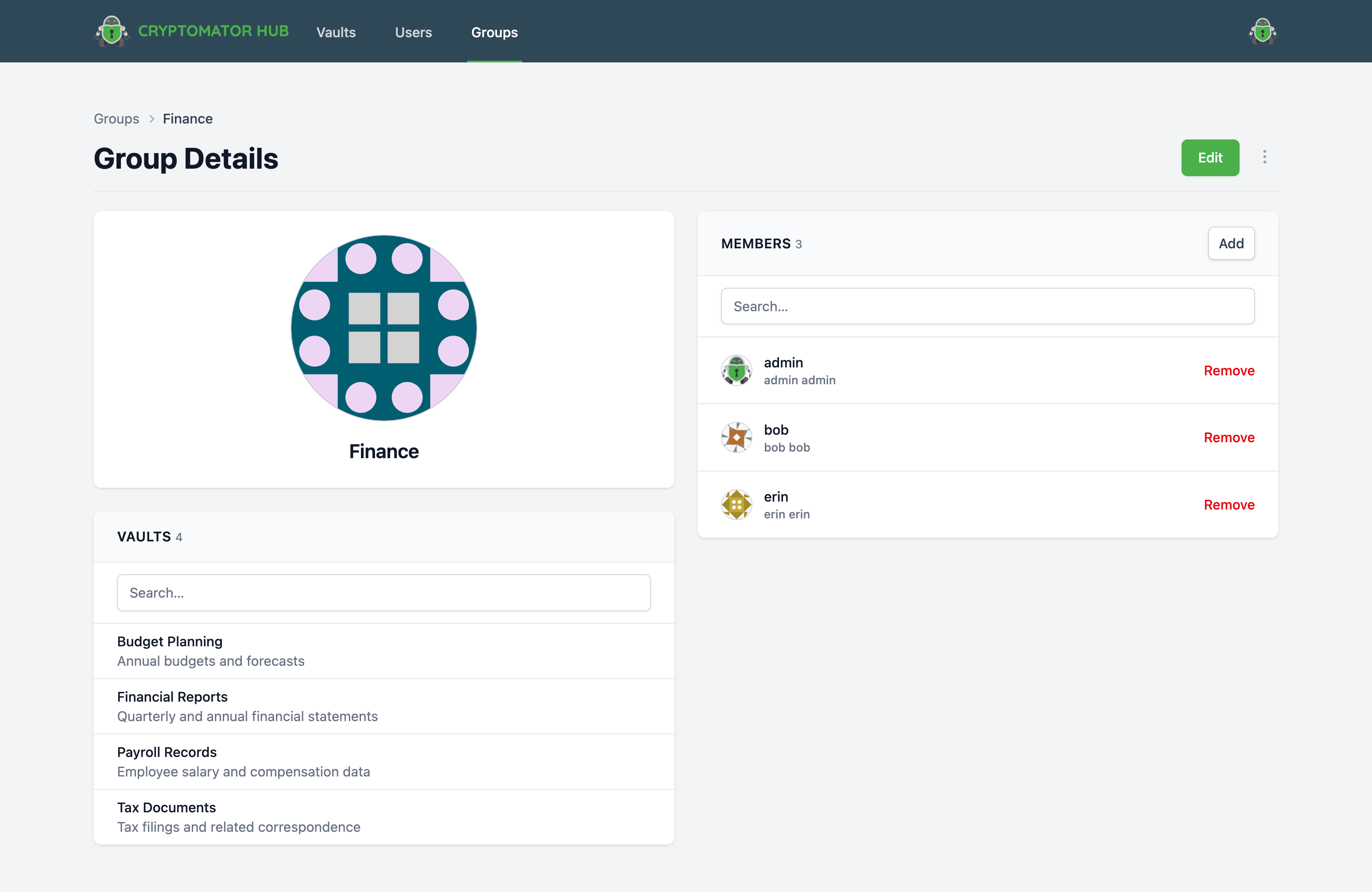
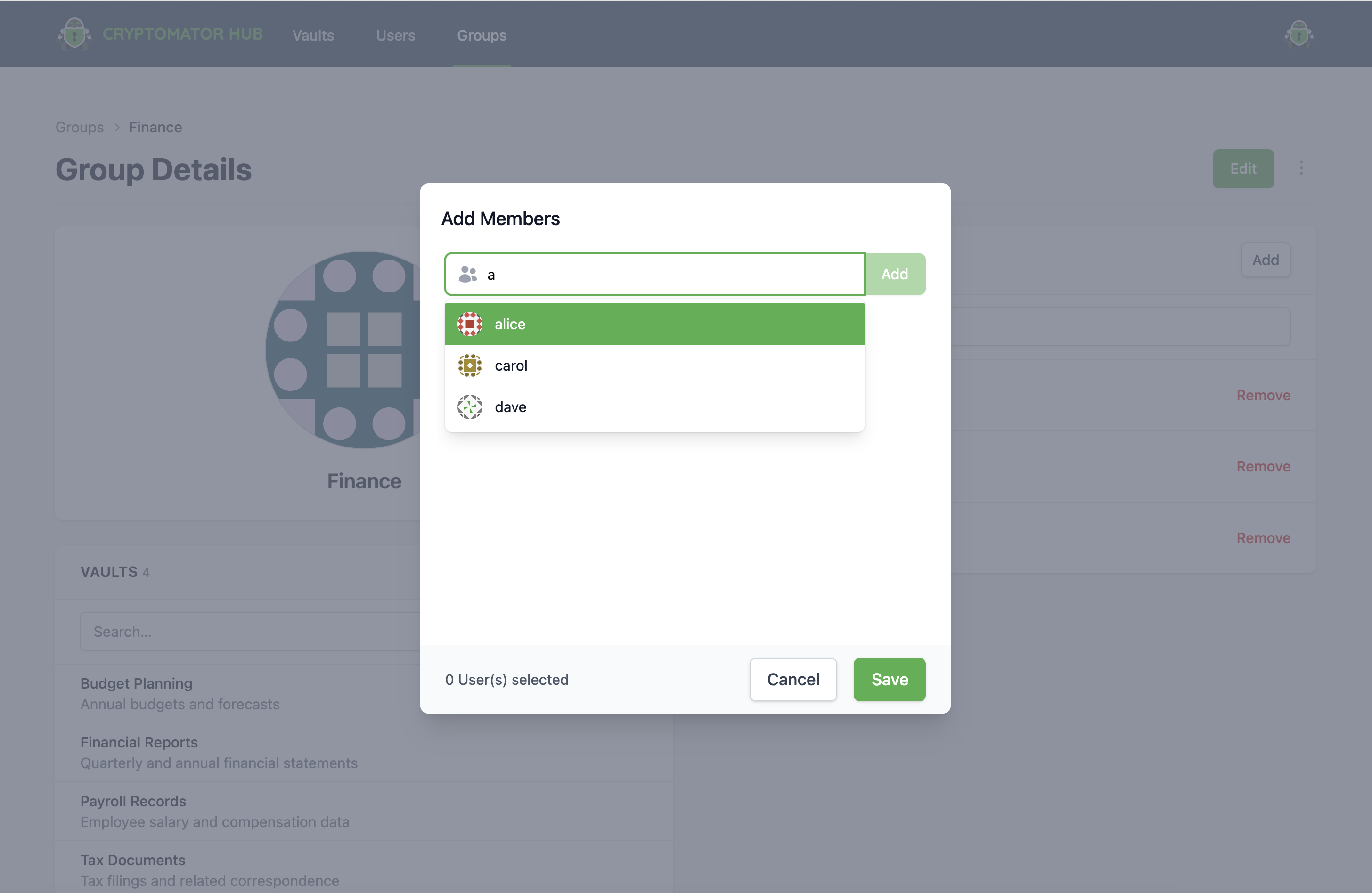
Manage Group Members
From the group detail page, you can:
- Add Members: Click "Add Member" to search for and add users to the group
- Remove Members: Click the remove button next to a member to remove them from the group
Subgroups are not supported.
Roles
There are three roles in Cryptomator Hub:
| Role | Description |
|---|---|
| user | Default role. Can open vaults and manage their own account. |
| admin | Can manage users and groups and view audit logs. |
| create-vault | Allows users to create new vaults. |
Roles are assigned when creating or editing a user. The user role is assigned by default to all users.
User Avatars
Users can have profile pictures displayed throughout Hub (e.g., in vault member lists). As an administrator, you can set the profile picture URL when creating or editing a user.
The avatar can be provided as a URL to an image (e.g., https://example.com/avatar.png).
If no profile picture is set, a generated avatar based on the user's name will be displayed.
External Identity Management
Instead of managing users and groups directly in Hub, you can connect Cryptomator Hub to an external identity provider (LDAP, Active Directory, OpenID Connect, or SAML) so users authenticate with the credentials they already have.
See Identity Provider for how to connect and manage an external identity provider.