Encrypted File Names
File name and directory structure encryption cannot be disabled.
Cryptomator protects your files by not only encrypting their content, but also their names and the overall directory structure of the vault. As a result, encrypted files and folders inside the vault storage location do not reveal the original names or layout (for an example see below).
This matters whenever you need to match a cleartext file in your unlocked vault with its encrypted counterpart in the vault storage location, for example when restoring an older version from a cloud provider or backup tool.
The app offers two features to reveal the mapping between the cleartext and the encrypted files:
Locate Encrypted File: You have the cleartext file in the unlocked vault and want to find its encrypted counterpart in the vault storage location.Decrypt File Name: You have an encrypted vault file and want to know its original cleartext name.
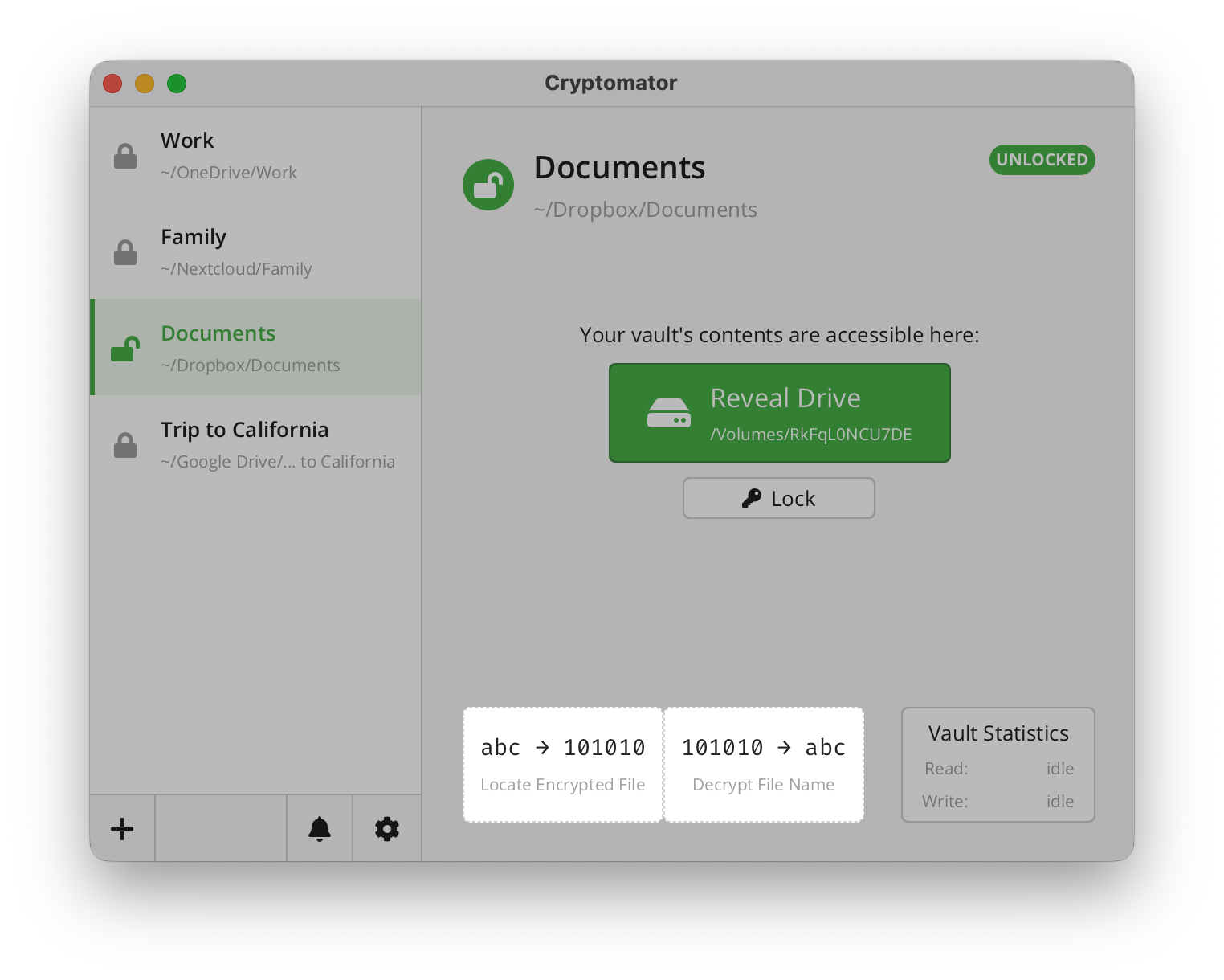
Locate Encrypted File
The Locate Encrypted File feature helps you find the encrypted counterpart of a file from inside the vault. This comes in handy when you want to restore an older version of a file. As Cryptomator encrypts file names and obfuscates directory structures, first locate the encrypted file and then restore an older version of the encrypted file with your third-party app.
- Unlock the desired vault.
- Click on the
Locate Encrypted Filebutton. - Select the file within the vault.
As an alternative for clicking the button, you can directly drag & drop a file onto the button.
A file manager window opens showing the encrypted folder and marking the encrypted file inside the vault storage location.
Decrypt File Name
The Decrypt File Name feature helps you resolve encrypted file names back to their original cleartext names.
- Unlock the desired vault.
- Click on the
Decrypt File Namezone at the bottom of the unlocked view. - Select the encrypted file.
As an alternative for clicking the zone, you can directly drag & drop files onto it.
A modal window opens showing a two-column table with the encrypted names on the left and their decrypted, cleartext names on the right.
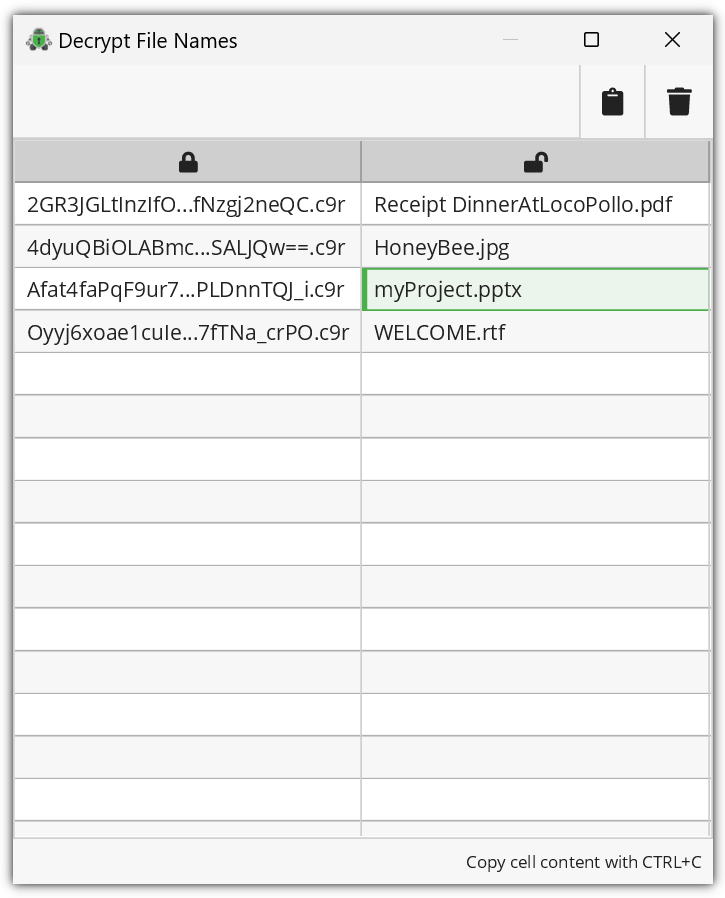
The action bar at the top of the table provides two buttons:
- Clipboard button to copy the whole table as CSV into the system clipboard
- Trash button to clear the table
You can select single cells and copy their content with the OS-specific keyboard shortcut.
For technical reasons, Cryptomator can only decrypt the file name of a given encrypted file. It cannot tell where that file is located in the unlocked vault.
Technical Example
If you have a directory structure inside your vault like this:
.
├─ myProject.pptx
├─ Images for Project
│  └─ ImageOfBees.jpg
└─ ...
The actual directory structure of the vault on your hard drive/cloud will look like this:
.
├─ d
│  ├─ BZ
│  │  └─ R4VZSS5PEF7TU3PMFIMON5GJRNBDWA
│  │     ├─ dirId.c9r  # internal vault file
│  │     ├─ 5TyvCyF255sRtfrIv**83ucADQ==.c9r  # myProject.pptx
│  │     └─ FHTa55bH*sUfVDbEb0gTL9hZ8nho.c9r  # Linking entry for directory "Images for Project"
│  │        └─ dir.c9r  # contains information for the link
│  └─ FC
│     └─ ZKZRLZUODUUYTYA4457CSBPZXB5A77  # content of the directory "Images for Project"
│        └─ 4lmrQYfE_5ETusEkVJlTJrcFzjwxNBymig==.c9r # ImageOfBees.jpg
├─ masterkey.cryptomator
├─ masterkey.cryptomator.DFD9B248.bkup
└─ vault.cryptomator
This is why you cannot identify files in the vault storage location by name alone without decrypting them first. For more information about the vault encryption scheme read the specification.
Video Walkthrough
The following video demonstrates both features in action: first, Locate Encrypted File to find the encrypted counterpart of a file, and then Decrypt File Name to resolve an encrypted file name back to its original name.